Lightspeed Restaurant supports integrated payment processing with PayPal in Sweden, Finland, Denmark, Norway, UK, Germany, France, Spain, Netherlands, Mexico, and Brazil.
NOTE: For LiteServer users, PayPal payment processing requires LiteServer v4.7 or higher.
1. Create a dedicated payment method for PayPal
You must create a dedicated PayPal payment method in Lightspeed Restaurant to process payments. When creating the payment type, name it "PayPal" and select iZettle as the Type. When selecting the “PayPal” payment method in Lightspeed Restaurant, the payment is transferred to the PayPal terminal for credit card processing. See Adding a payment type.
2. Connect a PayPal terminal to your iPad
Lightspeed Restaurant supports PayPal Bluetooth swipe and chip/PIN card readers. Assign your Bluetooth PayPal device to your iPad as detailed in the PayPal documentation.
Audio jack devices are not supported.
3. Log in to your PayPal account
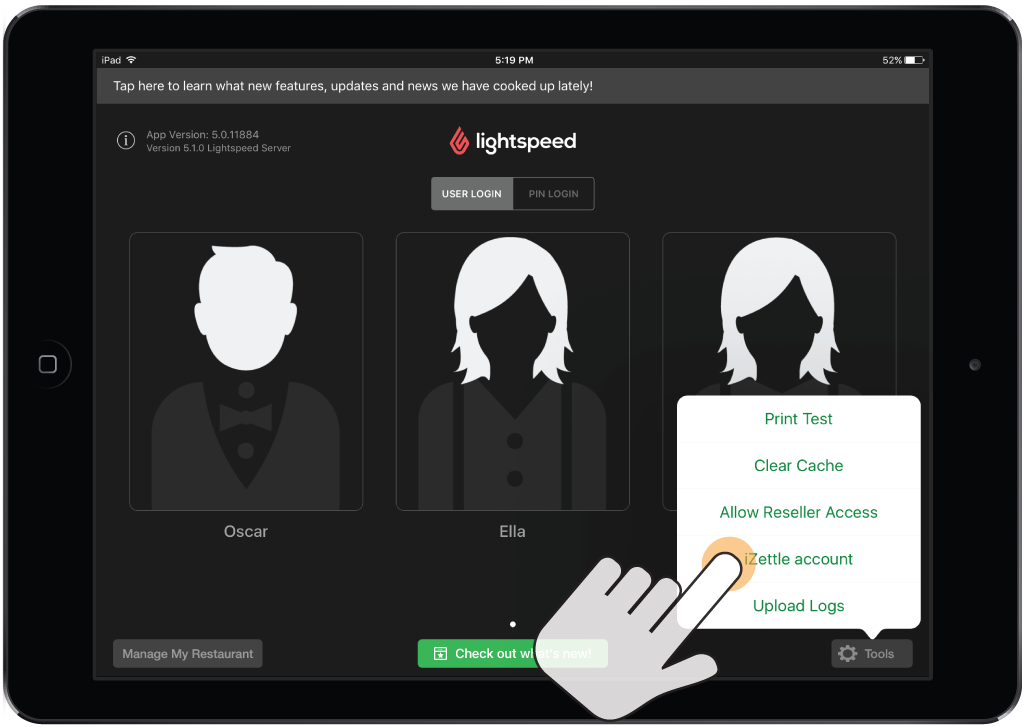
To process payments using PayPal, you must log in to your PayPal account from your Lightspeed Restaurant account. This links your account to your PayPal account.
- From the User screen, tap Tools, and then iZettle account.
- Enter your PayPal account email and password.
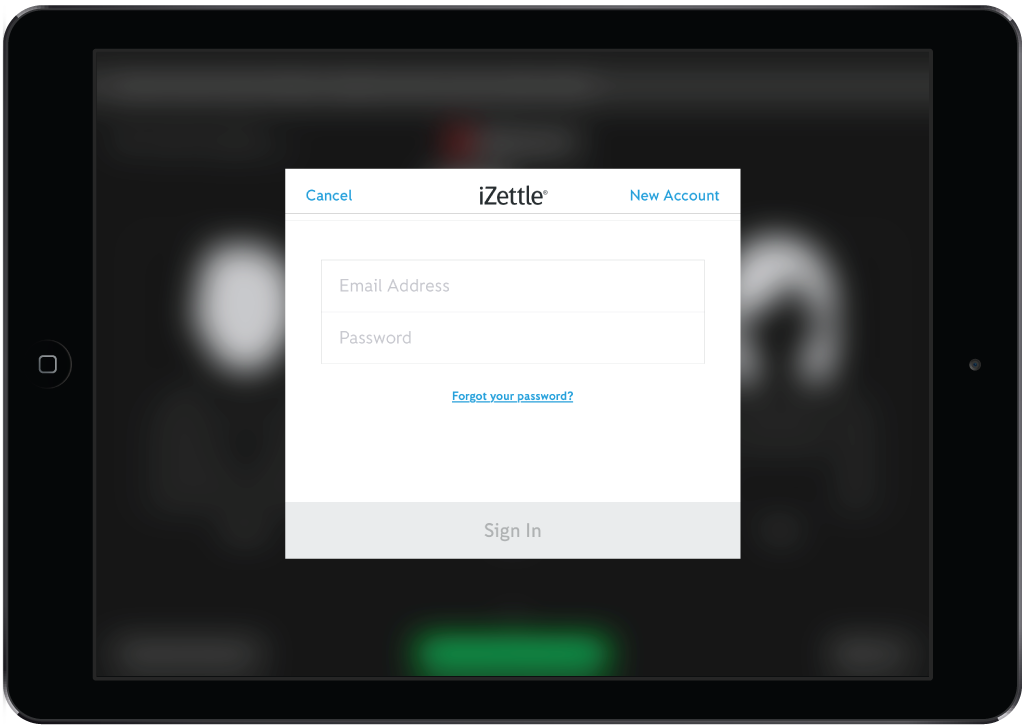
- Tap Log in.
What's next
You're now ready to process payments using your PayPal terminal. See Taking payments and tips.