Adding customers to orders in Restaurant POS helps you identify and keep track of your returning customers. Once a customer is in your system, you'll have quick access to information related to their favorite products, their visit history, and their credit/tab standing. Customer information can be viewed at any time via the Customer popup.
Assigning a customer on the Order screen
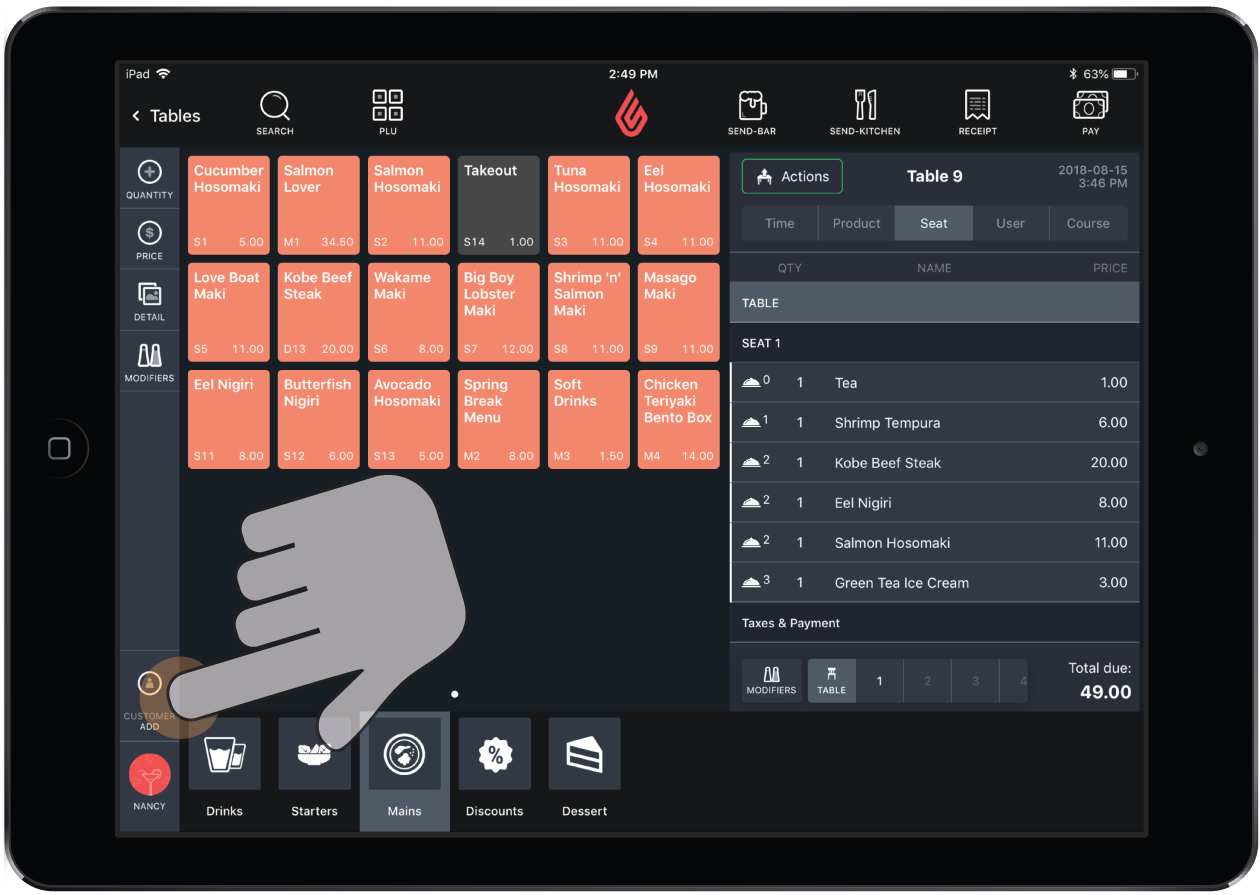
To add customers to orders from the Order screen, you first need to enable the Shortcut bar. In Restaurant Manager, click Devices > Restaurant App Settings, then scroll down to Order View Settings and select Show shortcut bar. See Using the shortcut bar for more information.
- Tap the
 icon in the shortcut bar.
 - Tap the customer to add them to the order. To create a new customer, see Creating Customers.
- Tap Confirm. The customer's name will now show in the customer icon.
Assigning a customer to a receipt
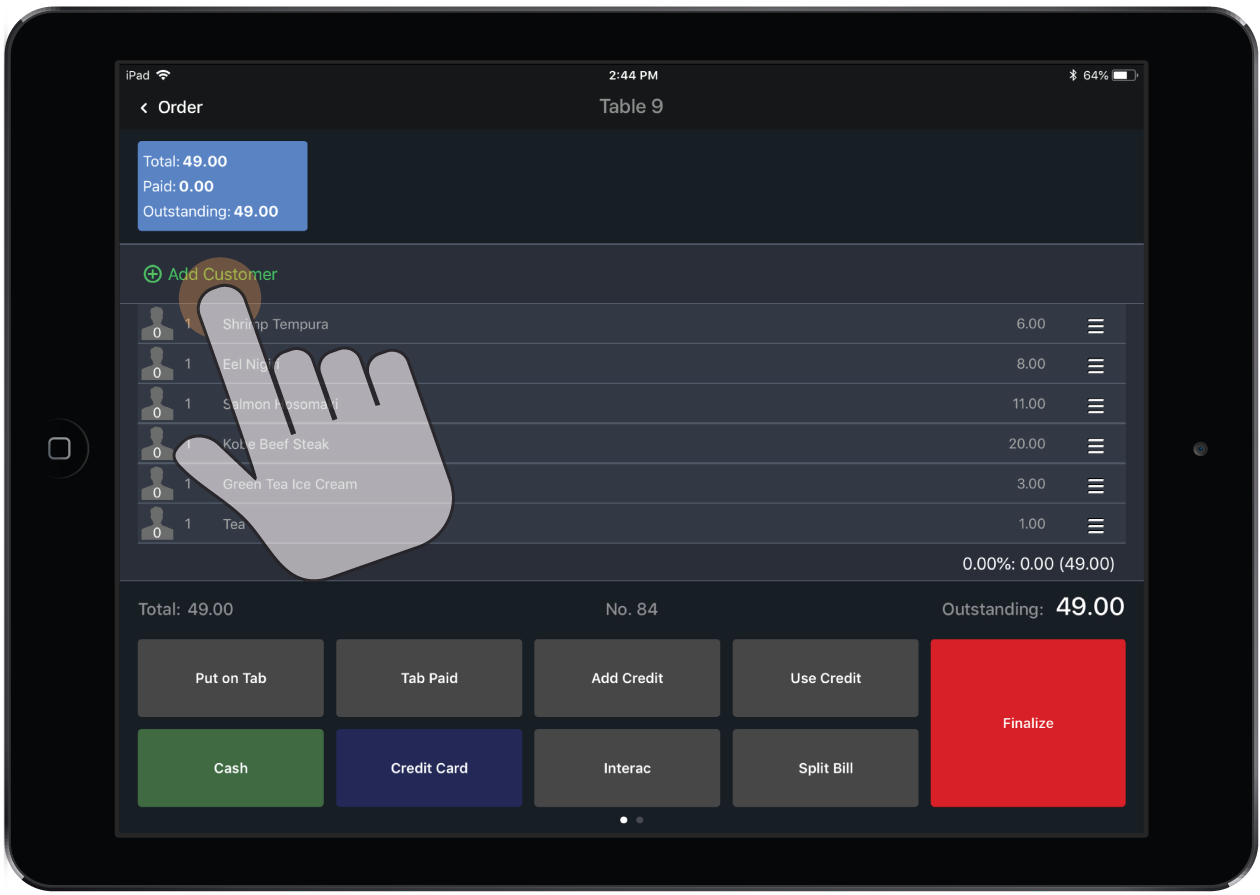
- In Restaurant POS, open the Payments screen for an order.
- Tap + Add Customer.
- Tap the customer to add them to the order. To create a new customer see Creating Customers.
- Tap Confirm. The customer's name will now show on the receipt.